Incremental Refresh in Power BI: Step by Step
How to set up incremental refresh in Power BI: RangeStart and RangeEnd parameters, a filter with query folding, the history and refresh policy, partitions and the most common pitfalls.
Quick summary
Incremental refresh makes Power BI refresh only new or changed data, instead of reloading the whole table on every refresh. On large tables, that shortens the refresh and eases the load on the data source.
Setting it up takes five steps:
- Have a date/time column in the table.
- Create the
RangeStartandRangeEndparameters in Power Query. - Filter the date/time column with those parameters.
- Configure the incremental refresh policy in the model.
- Publish the report and test it.
What it is and when it’s worth it
Without incremental refresh, every refresh reloads the entire table. If the table has tens of millions of rows or more, the refresh takes a long time and uses a lot of resources. With the feature on, Power BI splits the table into partitions and refreshes only the most recent ones, which are the ones that change.
What you get:
- Faster refreshes: only recent data is refreshed.
- More reliability: smaller queries to the source are less likely to fail because of network or connection problems.
- Lower consumption: Power BI and the data source use less memory and processing.
- Larger models: history can keep growing without reloading everything each time.
The feature makes the most sense on fact tables, which grow every day and hold transactions. On a small table, a full refresh is already quick and the extra setup rarely pays off.
Requirements
Before you configure it, check these points:
- License or capacity: incremental refresh works with Power BI Pro, Premium per User (PPU), Premium capacity and Embedded. Microsoft’s documentation lists Fabric capacities (F SKUs) alongside Power BI’s Premium capacities, but the incremental refresh page doesn’t mention Fabric explicitly. The real-time option with DirectQuery requires Premium, PPU or Embedded.
- A date/time column: the table needs a date or date/time column for the filter. If it only has an integer key in the
yyyymmddformat, you can convert it (see the FAQ). RangeStartandRangeEndparameters: the names are reserved and case-sensitive. Both must be date/time type, even if the table column is of another type.- A source that accepts date filtering: the feature works best with relational sources, like SQL Server or Azure Synapse, but it can work with others.
- Query folding: the date filter has to reach the source, instead of being applied in Power BI after everything is loaded. I explain this further down.
- A single data source: all partitions of the table must query the same source.
Step by step
1. Check the date/time column
Make sure the table that will get incremental refresh has a date or date/time column. It’s what Power BI uses to decide what goes into each partition.
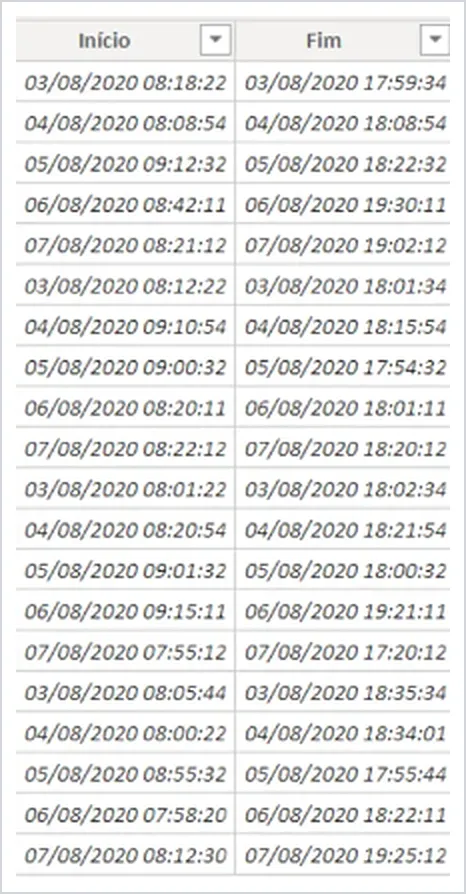
Example of date/time columns in a table.
2. Create the parameters in Power Query
In Power BI Desktop, open Transform data. Under Manage Parameters, choose New Parameter and create two parameters:
RangeStart, type Date/Time, with a start date.RangeEnd, type Date/Time, with an end date.
The values you type here only apply in Desktop. Use a short range, with little recent data, so the table loads fast while you set things up. After publishing, the service ignores these values and uses the policy you’re about to define.
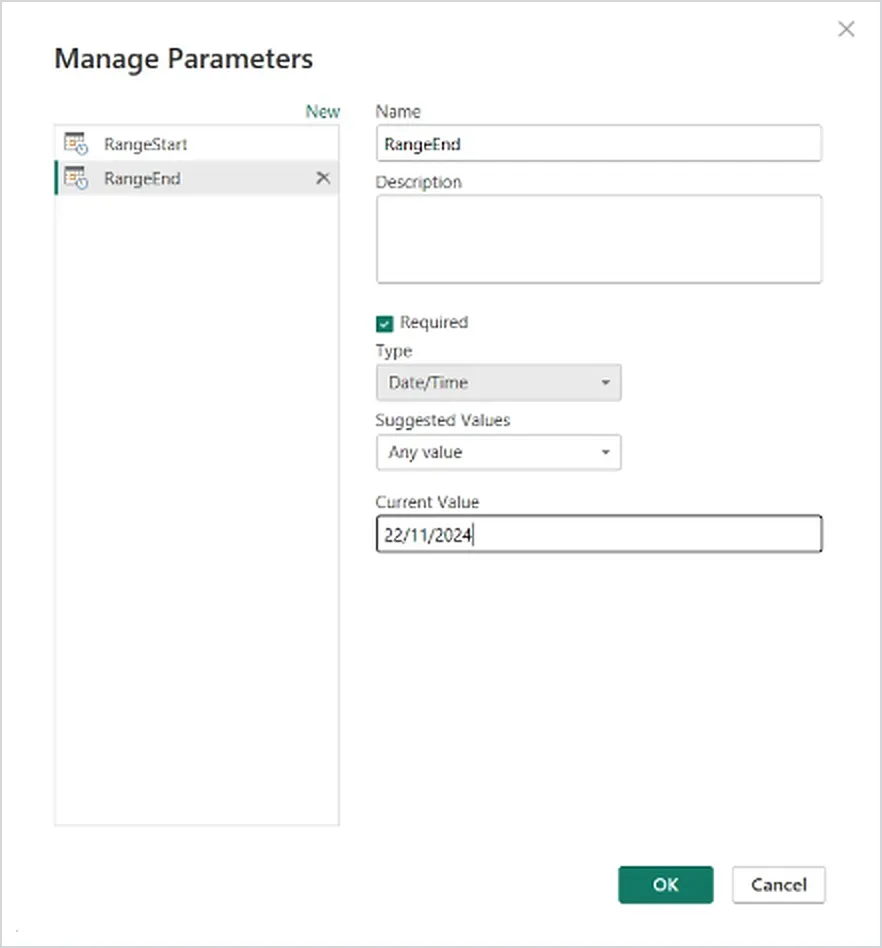
Manage Parameters window with the RangeEnd parameter of type Date/Time. RangeStart is created the same way.
3. Filter the column with the parameters
On the date column, open the filter menu, go to Date Filters and then Custom Filter. For the first condition, choose is after or equal to, then Parameter, and RangeStart. For the second, choose is before, then Parameter, and RangeEnd.
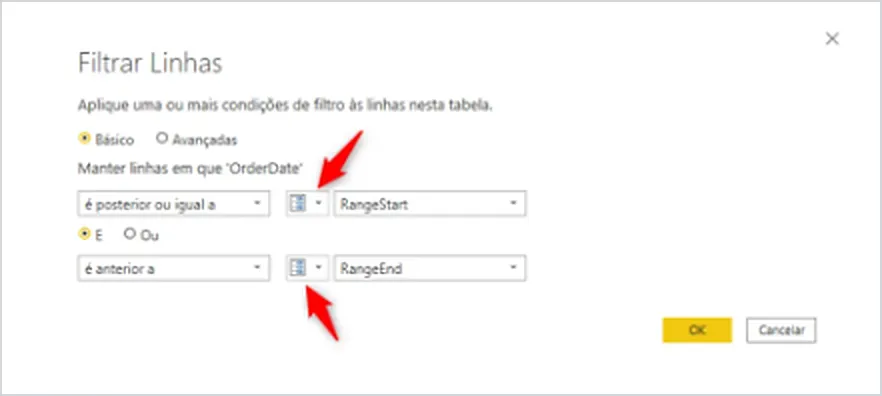
Filter on the OrderDate column: “is after or equal to” RangeStart and “is before” RangeEnd. This screenshot is from a Portuguese-language Power BI Desktop.
The result in the editor is a step like this:
= Table.SelectRows(Source, each [OrderDate] >= RangeStart and [OrderDate] < RangeEnd)The equal sign should appear on only one side. If it appears on both, a row can fall into two partitions and duplicate data in the model.
Then click Close & Apply. The table should load quickly, because only the parameter range comes in. If it’s slow, the most likely cause is that the filter isn’t reaching the source (query folding).
4. Define the incremental refresh policy
In Table view, right-click the table in the Data pane and choose Incremental refresh. In the dialog:
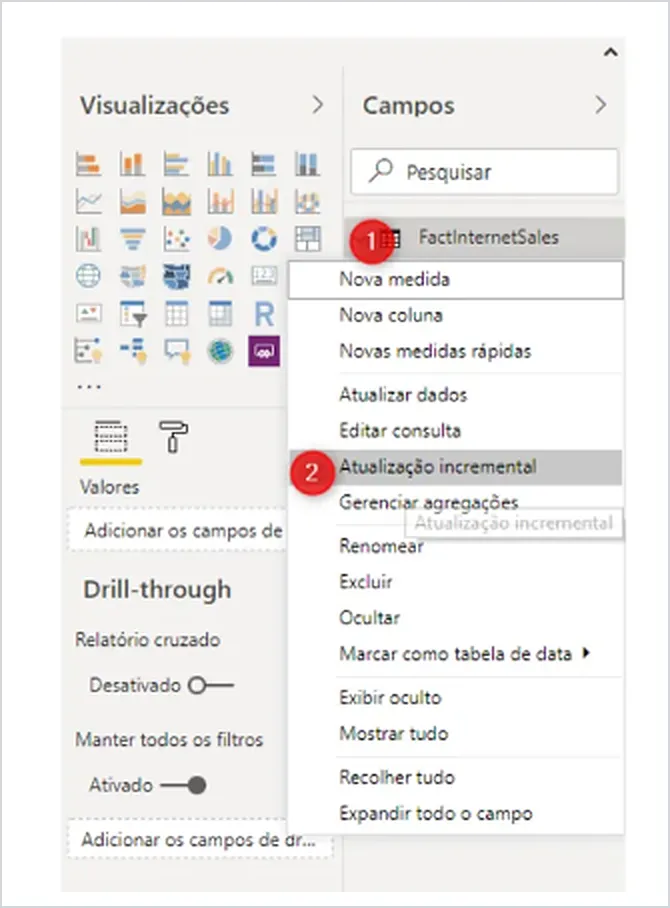
Right-click the table in the Fields pane and choose “Incremental refresh” (shown here in Portuguese: “Atualização incremental”).
- Check the selected table and turn on the option to refresh the table incrementally. If the option is disabled, the table’s query doesn’t have the filter with
RangeStartandRangeEndyet. - Under Archive data starting, set how long to keep history. For example, 5 years.
- Under Incrementally refresh data starting, set the window that is refreshed on each refresh. For example, 3 days.
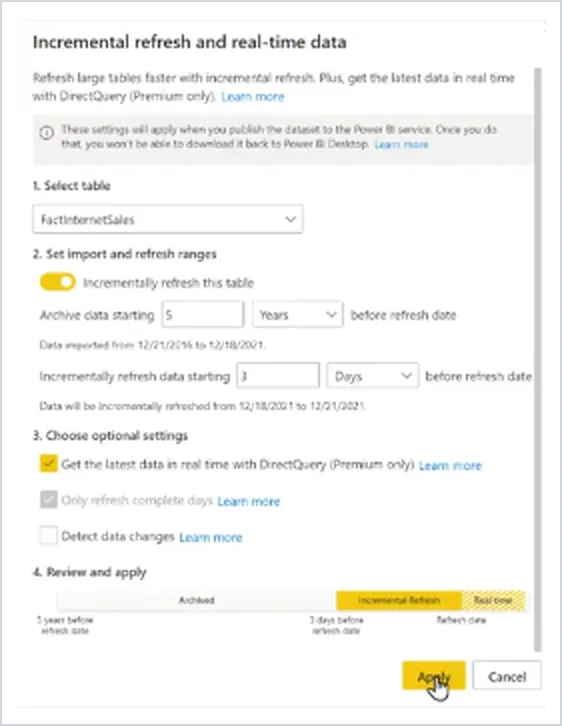
Policy window with 5 years of history and 3 days of refresh. In this screenshot, the real-time option with DirectQuery is checked; it’s optional and Premium only. In the example in the text, it stays off.
With that example, the first refresh in the service loads the 5 years of history. The following ones refresh only the last 3 days. Microsoft recommends picking the smallest period that still keeps your reports accurate.
There are also three optional settings:
- Get the latest data in real time with DirectQuery (Premium only): uses DirectQuery to include what changed after the refresh period. Requires Premium.
- Only refresh complete days: refreshes only whole days. Useful for metrics that make no sense with a half day.
- Detect data changes: refreshes only the periods where an audit date/time column changed. That column can’t be the same one used by the parameters.
Click Apply. This step only saves the policy, it doesn’t load data.
5. Publish and refresh in the service
Save and publish the report. In the service, run the first refresh manually so you can follow its progress. It can take a while, because it creates the partitions and loads all the history. The following refreshes, manual or scheduled, are usually much faster, because only the policy window is refreshed.
How it works inside
Partitions
On the first refresh after publishing, the service creates the table’s partitions: one for each slice of time in the history and others for the refresh window. For each one, it swaps in values for RangeStart and RangeEnd and queries only that partition’s period.
On every new refresh, data that leaves the refresh window becomes history and stops being refreshed. Over time, historical partitions are merged into larger ones, and the ones that fall outside the storage period are removed. This behavior is called a rolling window.
With 5 years of history, for example, complete years sit in yearly partitions and the current year sits in smaller ones, by quarter, month or day. You don’t see these partitions in the service. On Premium capacity, through the XMLA endpoint, you can inspect and manage them.
Query folding and native queries
Query folding is when Power Query translates your steps into the source’s language, like SQL, and the filter runs there. For incremental refresh, what matters most is that the filter on RangeStart and RangeEnd reaches the source.
If it doesn’t, in an import-only model Power BI can fetch every row of the table and filter locally. Then the refresh gets slow, can exhaust the resources of the service or the gateway, and the benefit of the feature is lost. Power BI Desktop tries to check this when you define the policy and shows a warning when it can’t confirm. To check on your own, use Power Query Diagnostics or a tracing tool for the source, like SQL Profiler.
The final query as a whole doesn’t have to fold. A native query works, as long as the parameters are inside the SQL. This example, adapted from Microsoft’s documentation, uses a date key in the yyyymmdd format:
let
  Query = "select * from dbo.Orders where OrderDateKey >= '" & Text.From(Int32.From(DateTime.ToText(RangeStart, "yyyyMMdd"))) & "' and OrderDateKey < '" & Text.From(Int32.From(DateTime.ToText(RangeEnd, "yyyyMMdd"))) & "'",
  Source = Sql.Database("server", "database"),
  Data = Value.NativeQuery(Source, Query, null, [EnableFolding = false])
in
  Data
With real-time data through DirectQuery, non-folding steps can’t be used.
Watch-outs and common mistakes
Republishing wipes the partitions. After you publish a model with incremental refresh, publishing it again from Desktop removes the partitions and the data already in the model. You also can’t download the model back as a .pbix. On Premium, structure changes can be made with tools like ALM Toolkit.
The policy only applies in the service. It takes effect after publishing and a refresh, manual or scheduled. In Desktop, you only see the short slice defined by the parameters.
Time zone. By default, the current date and time are calculated in UTC. That can change the effective day of the refresh. You can set another time zone in the service’s refresh section.
Time limits still apply. Even with incremental refresh, the maximum duration of a refresh is 2 hours on Pro and 5 hours on Premium capacity, except for refreshes through the XMLA endpoint.
“Detect data changes” doesn’t detect deletions. It only works for soft deletes: the row stays in the source, marked as deleted, with an updated change date.
Data missing or duplicated. Review the filter: the equal sign should be on only one of the parameters, and the parameters must be named RangeStart and RangeEnd, exactly like that.
Frequently asked questions
Do I need Premium? No. Pro, Premium per User, Premium and Embedded support incremental refresh. Only real-time data with DirectQuery requires Premium, PPU or Embedded.
What if I use Fabric capacity? Microsoft’s documentation lists Fabric capacities (F SKUs) alongside Power BI’s Premium capacities, with memory limits for semantic models. The incremental refresh page, however, doesn’t mention Fabric explicitly, so check in your own environment before counting on a specific feature, like real-time data.
My table only has the date as a number (yyyymmdd). Can I still use it? Yes. The parameters stay date/time, and you create a function that converts the date/time into the equivalent number, without losing folding. Then you call that function in the filter. The function from Microsoft’s documentation is:
= (x as datetime) => Date.Year(x)*10000 + Date.Month(x)*100 + Date.Day(x)Create it as a blank query, for example named DateKey, and use DateKey(RangeStart) and DateKey(RangeEnd) in the column filter.
Does it work with Excel, SharePoint or folders of files? It can, but it’s a more advanced scenario. The feature pays off most with relational sources like SQL Server and Azure Synapse. For other sources, the parameters have to be passed to the source in a way that allows filtering, which takes customization and testing.
How much history should I keep, and how much should I refresh? Keep the history your reports actually use. For the refresh window, the recommendation is to pick the smallest period that still keeps reports accurate.
Can I see the partitions in the service? Normally no, the service takes care of them. On Premium capacity, through the XMLA endpoint, you can view and manage partitions with tools like SQL Server Management Studio.
Conclusion
Incremental refresh swaps reloading everything for refreshing only what changed. To work well, it needs three things: a date/time column, the RangeStart and RangeEnd parameters filtering the table, and a filter that reaches the source. The rest is deciding how much history to keep and how much to refresh each time, publishing, and running the first refresh in the service.